Shared User Screen
This document guides you on the screen you see and the actions you can take when you receive a link from another user or are added as a member of a shared folder.
1. Shared Path
| path | How to Know | Opening Place |
|---|---|---|
| link | Link received via messenger or email | File Viewing Page After Clicking the Link |
| Personal file sharing | Link shared by the user | File Viewing Page After Clicking the Link |
| Add members to the shared folder | Guide Email (if the mail server is configured) | Left Menu [Shared Box] |
| Inviting External Users | Invitation Email | After signing up, log in, and the left menu [Shared Box] |
2. In case of receiving via a link
- Click the received link.
- If you are not logged in, you will log in.
- The file will open after displaying the message "Checking file information." The folder link will navigate to the list of that folder.
(Image to be attached later)
The results based on permissions are as follows.
| situation | result |
|---|---|
| Access permission granted | Opened in the appropriate way according to the settings among web, app, and viewer. |
| No viewing permission, download permission granted | "You do not have permission to open the file. Access is restricted, but you can download and save it to your PC." Display after download |
| No viewing or download permissions | "Permission to open the file is denied. Please contact the administrator." |
| SharePoint·Google Drive account integration required | "Account linking has not been completed. You need to link your account to use the shared files." Displayed. Open again after linking. |
| File/Folder Deleted | "File or folder has been deleted, and the specified path does not exist." |
Please refer to "File and Folder Management Guide > File Link Viewing Process" for the overall status and instructions.
3. When added as a member of the shared folder
When you open the [Shared Folder] in the left menu, the shared folders registered as members will be displayed. When you open a folder, you handle files in the same way as a regular folder.
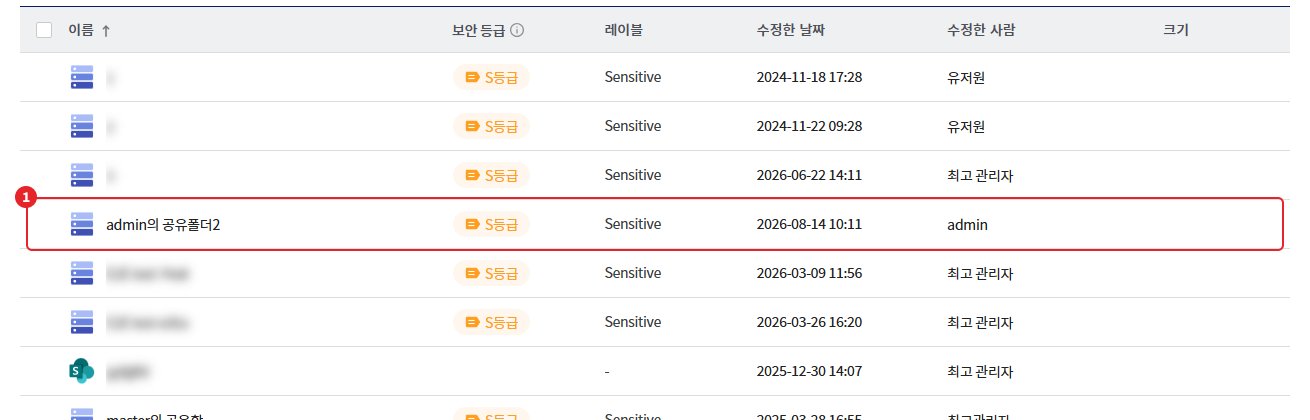
3-1. Usable Menu in the Shared Items List
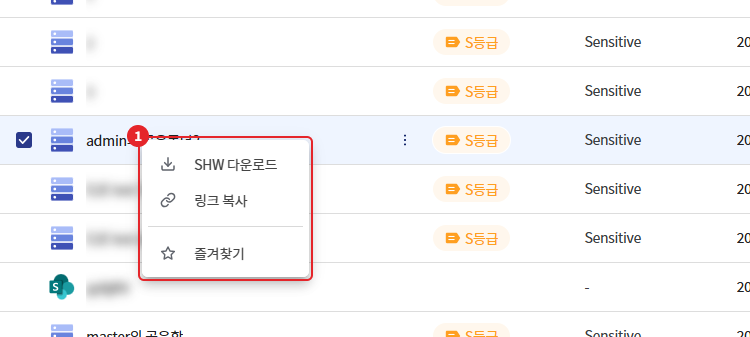
When you right-click on a shared folder in the shared items list, the menu below is displayed.
| Menu | owner | Members |
|---|---|---|
| [Copy Link] | O | O |
| [Favorites] | O | O |
| [SHW Download] (if the administrator has enabled SHIELD Drive Works) | O | O |
| [Edit], [Settings], [Delete] | O | X |
- [SHW Download] is the menu for downloading SHW files to use a shared folder as the SHIELD Drive Works working folder.
- Members cannot change the name, description, or access permissions of the shared folder. If permission changes are needed, please request them from the shared folder owner.
3-2. Tasks that can be performed within the shared folder
In the shared folder, the menus are displayed according to the permissions of the role I belong to. Menus for disallowed actions are not displayed.
| Permission | Displayed Menu·Function |
|---|---|
| viewing | [Open in Viewer], File Viewing |
| Edit | [Open in Web], [Open in App] |
| Upload | File and Folder Upload, Create New File and New Folder |
| Download | [Download], [Download Folder] |
| Move/Copy within the working folder | Move·Copy to the same shared folder |
| Move/Copy to another work folder | Move to another folder/storage · Copy to another folder/storage |
| File/Folder Deletion | [Delete] |
- If you belong to multiple roles in a single shared folder, the permissions allowed by each role will be applied together.
- If a duration is specified for the role, the permissions of that role will not apply after the expiration date. If you were only registered with that role, the shared folder will disappear from the list.
- If the owner removes me from the members or deletes the shared folder, I will no longer have access.
3-3. Shared Features
| Function | content |
|---|---|
| comment | Right panel [Comments] tab for registration and confirmation (Collaborative editing and comment reference) |
| Activity History | Check file and folder activity history in the [Activity History] tab of the right panel. |
| File Version | Check previous versions in the [File Version] tab of the right panel. |
| Collaborative Editing | Edit simultaneously with multiple users using [Open in Web] |